{"meta":{"title":"卸载 GitHub Desktop","intro":"您可以随时从计算机卸载 GitHub Desktop。","product":"GitHub Desktop","breadcrumbs":[{"href":"/zh/desktop","title":"GitHub Desktop"},{"href":"/zh/desktop/installing-and-authenticating-to-github-desktop","title":"安装和身份验证"},{"href":"/zh/desktop/installing-and-authenticating-to-github-desktop/uninstalling-github-desktop","title":"卸载"}],"documentType":"article"},"body":"# 卸载 GitHub Desktop\n\n您可以随时从计算机卸载 GitHub Desktop。\n\n\n\n1. 在 Mac 上打开 Finder,并导航到“应用程序”文件夹。\n\n2. 右键单击 GitHub Desktop,然后单击“移动到回收站”。\n\n3. 在菜单栏中,使用“Finder”下拉菜单,然后单击“清空回收站”。\n\n \n\n4. 阅读弹出框中的警告,并单击“清空废纸篓”。\n\n
\n\n\n\n1. 打开“开始”菜单,然后搜索并打开“控制面板”。\n2. 在“程序”下,单击“卸载程序”。\n\n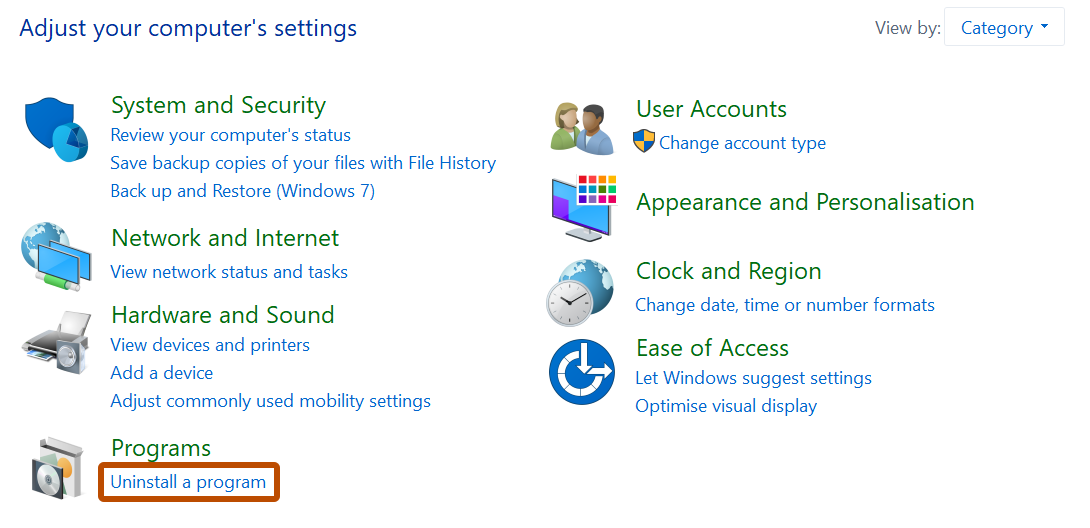\n\n1. 右键单击名为 GitHub Desktop 的条目,然后单击“卸载” 。\n\n
"}