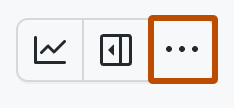
{"meta":{"title":"About text and number fields","intro":"You can add custom text and number fields to your project.","product":"GitHub Issues","breadcrumbs":[{"href":"/en/issues","title":"GitHub Issues"},{"href":"/en/issues/planning-and-tracking-with-projects","title":"Projects"},{"href":"/en/issues/planning-and-tracking-with-projects/understanding-fields","title":"Understanding fields"},{"href":"/en/issues/planning-and-tracking-with-projects/understanding-fields/about-text-and-number-fields","title":"About text and number fields"}],"documentType":"article"},"body":"# About text and number fields\n\nYou can add custom text and number fields to your project.\n\nYou can use text fields to include notes or any other freeform text in your project.\n\nText fields can be used in filters, for example: `field:\"exact text\"`. Text fields and item titles will also be used if you filter for text without specifying a field.\n\nNumber fields can also be used in filters. You can use `>`, `>=`, `<`, `<=`, and `..` range queries to filter by a number field. For example: `field:5..15` or `field:>=20`. For more information, see [Filtering projects](/en/issues/planning-and-tracking-with-projects/customizing-views-in-your-project/filtering-projects).\n\n## Adding a text field\n\n1. In table view, in the rightmost field header, click <svg version=\"1.1\" width=\"16\" height=\"16\" viewBox=\"0 0 16 16\" class=\"octicon octicon-plus\" aria-label=\"Add field\" role=\"img\"><path d=\"M7.75 2a.75.75 0 0 1 .75.75V7h4.25a.75.75 0 0 1 0 1.5H8.5v4.25a.75.75 0 0 1-1.5 0V8.5H2.75a.75.75 0 0 1 0-1.5H7V2.75A.75.75 0 0 1 7.75 2Z\"></path></svg>.\n   ![Screenshot of a project. The \"Add field\" button is highlighted with an orange outline.](/assets/images/help/projects-v2/new-field-button.png)\n2. Click **New field**.\n3. At the top of the dropdown, type the name of your new field.\n4. Select **Text**.\n5. Click **Save**.\n\n## Adding a number field\n\n1. In table view, in the rightmost field header, click <svg version=\"1.1\" width=\"16\" height=\"16\" viewBox=\"0 0 16 16\" class=\"octicon octicon-plus\" aria-label=\"Add field\" role=\"img\"><path d=\"M7.75 2a.75.75 0 0 1 .75.75V7h4.25a.75.75 0 0 1 0 1.5H8.5v4.25a.75.75 0 0 1-1.5 0V8.5H2.75a.75.75 0 0 1 0-1.5H7V2.75A.75.75 0 0 1 7.75 2Z\"></path></svg>.\n   ![Screenshot of a project. The \"Add field\" button is highlighted with an orange outline.](/assets/images/help/projects-v2/new-field-button.png)\n2. Click **New field**.\n3. At the top of the dropdown, type the name of your new field.\n4. Select **Number**.\n5. Click **Save**.\n\n## Setting a default value\n\nSet a default value for text or number fields. New items added to the project are automatically pre-populated with that value.\n\n1. Navigate to your project.\n\n2. In the top-right, click <svg version=\"1.1\" width=\"16\" height=\"16\" viewBox=\"0 0 16 16\" class=\"octicon octicon-kebab-horizontal\" aria-label=\"More options\" role=\"img\"><path d=\"M8 9a1.5 1.5 0 1 0 0-3 1.5 1.5 0 0 0 0 3ZM1.5 9a1.5 1.5 0 1 0 0-3 1.5 1.5 0 0 0 0 3Zm13 0a1.5 1.5 0 1 0 0-3 1.5 1.5 0 0 0 0 3Z\"></path></svg> to open the menu.\n\n   ![Screenshot showing a project's menu bar. The menu icon is highlighted with an orange outline.](/assets/images/help/projects-v2/open-menu.png)\n\n3. In the menu, click **<svg version=\"1.1\" width=\"16\" height=\"16\" viewBox=\"0 0 16 16\" class=\"octicon octicon-gear\" aria-label=\"gear\" role=\"img\"><path d=\"M8 0a8.2 8.2 0 0 1 .701.031C9.444.095 9.99.645 10.16 1.29l.288 1.107c.018.066.079.158.212.224.231.114.454.243.668.386.123.082.233.09.299.071l1.103-.303c.644-.176 1.392.021 1.82.63.27.385.506.792.704 1.218.315.675.111 1.422-.364 1.891l-.814.806c-.049.048-.098.147-.088.294.016.257.016.515 0 .772-.01.147.038.246.088.294l.814.806c.475.469.679 1.216.364 1.891a7.977 7.977 0 0 1-.704 1.217c-.428.61-1.176.807-1.82.63l-1.102-.302c-.067-.019-.177-.011-.3.071a5.909 5.909 0 0 1-.668.386c-.133.066-.194.158-.211.224l-.29 1.106c-.168.646-.715 1.196-1.458 1.26a8.006 8.006 0 0 1-1.402 0c-.743-.064-1.289-.614-1.458-1.26l-.289-1.106c-.018-.066-.079-.158-.212-.224a5.738 5.738 0 0 1-.668-.386c-.123-.082-.233-.09-.299-.071l-1.103.303c-.644.176-1.392-.021-1.82-.63a8.12 8.12 0 0 1-.704-1.218c-.315-.675-.111-1.422.363-1.891l.815-.806c.05-.048.098-.147.088-.294a6.214 6.214 0 0 1 0-.772c.01-.147-.038-.246-.088-.294l-.815-.806C.635 6.045.431 5.298.746 4.623a7.92 7.92 0 0 1 .704-1.217c.428-.61 1.176-.807 1.82-.63l1.102.302c.067.019.177.011.3-.071.214-.143.437-.272.668-.386.133-.066.194-.158.211-.224l.29-1.106C6.009.645 6.556.095 7.299.03 7.53.01 7.764 0 8 0Zm-.571 1.525c-.036.003-.108.036-.137.146l-.289 1.105c-.147.561-.549.967-.998 1.189-.173.086-.34.183-.5.29-.417.278-.97.423-1.529.27l-1.103-.303c-.109-.03-.175.016-.195.045-.22.312-.412.644-.573.99-.014.031-.021.11.059.19l.815.806c.411.406.562.957.53 1.456a4.709 4.709 0 0 0 0 .582c.032.499-.119 1.05-.53 1.456l-.815.806c-.081.08-.073.159-.059.19.162.346.353.677.573.989.02.03.085.076.195.046l1.102-.303c.56-.153 1.113-.008 1.53.27.161.107.328.204.501.29.447.222.85.629.997 1.189l.289 1.105c.029.109.101.143.137.146a6.6 6.6 0 0 0 1.142 0c.036-.003.108-.036.137-.146l.289-1.105c.147-.561.549-.967.998-1.189.173-.086.34-.183.5-.29.417-.278.97-.423 1.529-.27l1.103.303c.109.029.175-.016.195-.045.22-.313.411-.644.573-.99.014-.031.021-.11-.059-.19l-.815-.806c-.411-.406-.562-.957-.53-1.456a4.709 4.709 0 0 0 0-.582c-.032-.499.119-1.05.53-1.456l.815-.806c.081-.08.073-.159.059-.19a6.464 6.464 0 0 0-.573-.989c-.02-.03-.085-.076-.195-.046l-1.102.303c-.56.153-1.113.008-1.53-.27a4.44 4.44 0 0 0-.501-.29c-.447-.222-.85-.629-.997-1.189l-.289-1.105c-.029-.11-.101-.143-.137-.146a6.6 6.6 0 0 0-1.142 0ZM11 8a3 3 0 1 1-6 0 3 3 0 0 1 6 0ZM9.5 8a1.5 1.5 0 1 0-3.001.001A1.5 1.5 0 0 0 9.5 8Z\"></path></svg> Settings** to access the project settings.\n\n4. Click the name of the text or number field to configure.\n\n5. In the **Default value** field, type the value to use as the default.\n\n6. Click **Save**.\n\nTo remove a default value, clear the **Default value** field, then click **Save**. Removing a default value does not affect existing items in the project."}